Sync activity & issues
PantryClub Connect keeps products, prices, orders, and delivery statuses in step in the background. Most of the time you never need to think about it. When something can’t go through, these three pages tell you what and why.
Sync activity
Section titled “Sync activity”The Sync activity page is the full log of every sync job. At the top, a banner tells you whether everything’s clear or how many items need a fix or failed after retries.
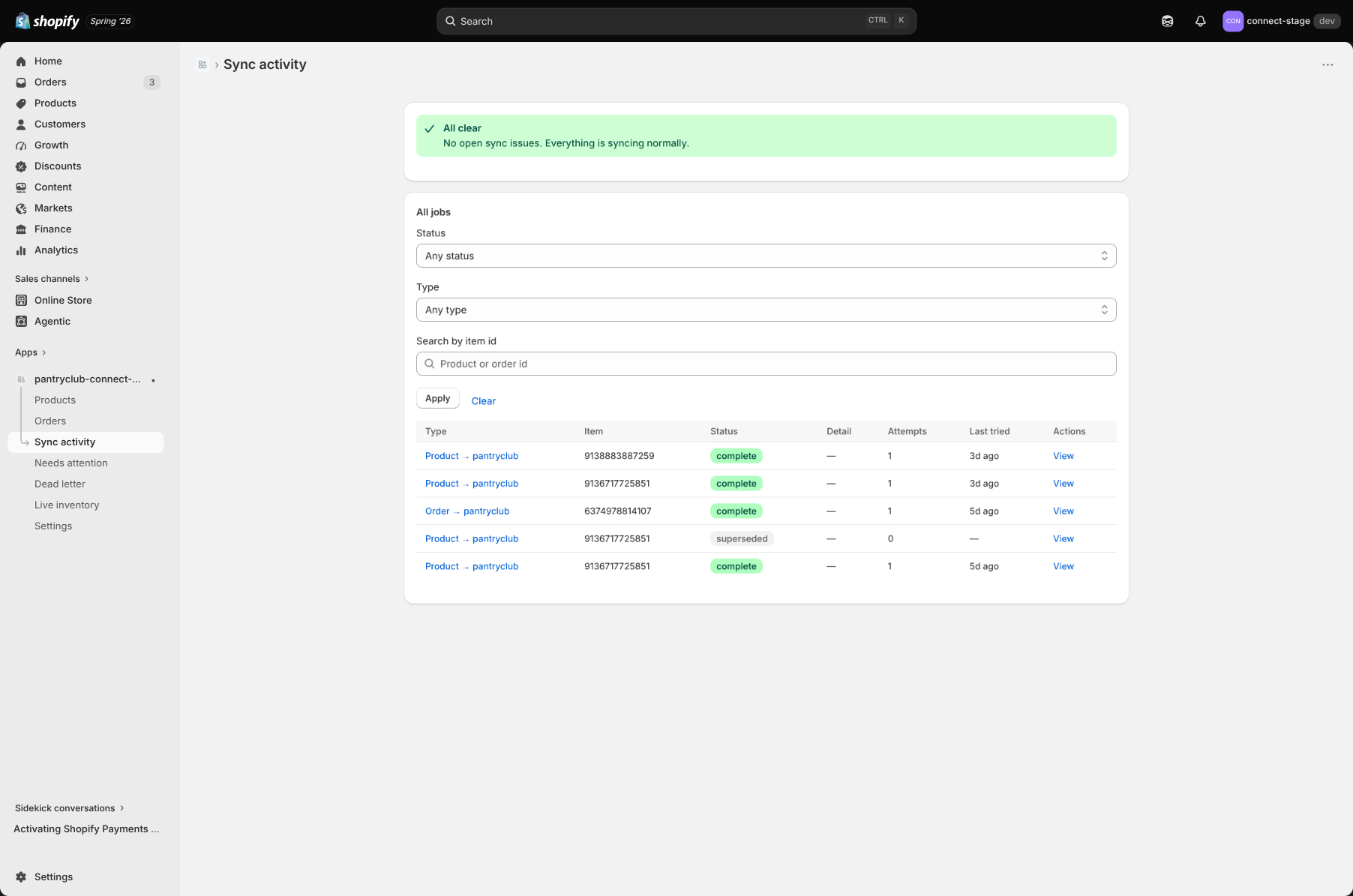
You can filter the log by:
- Status — Pending, Processing, Complete, Failed, Blocked, or Superseded.
- Type — Product → PantryClub, Pricing → Shopify, Order → PantryClub, or Order status → Shopify.
- Item — search by item number.
Each row shows the type, the item, its status, a short detail (an error note if there is one), how many attempts were made, and when it was last tried. Failed or blocked rows have a Retry button, and you can open any row for its full detail.
What the statuses mean
Section titled “What the statuses mean”- Pending / Processing — queued or in progress.
- Complete — done successfully.
- Failed — the attempt didn’t work (it will usually be retried automatically).
- Blocked — something needs correcting first (see Needs attention below).
- Superseded — a newer update replaced this one, so it’s no longer needed.
Needs attention
Section titled “Needs attention”The Needs attention page lists syncs that are paused because something needs correcting in Shopify — for example a missing cost, or a barcode that’s already in use. These are things you can fix.
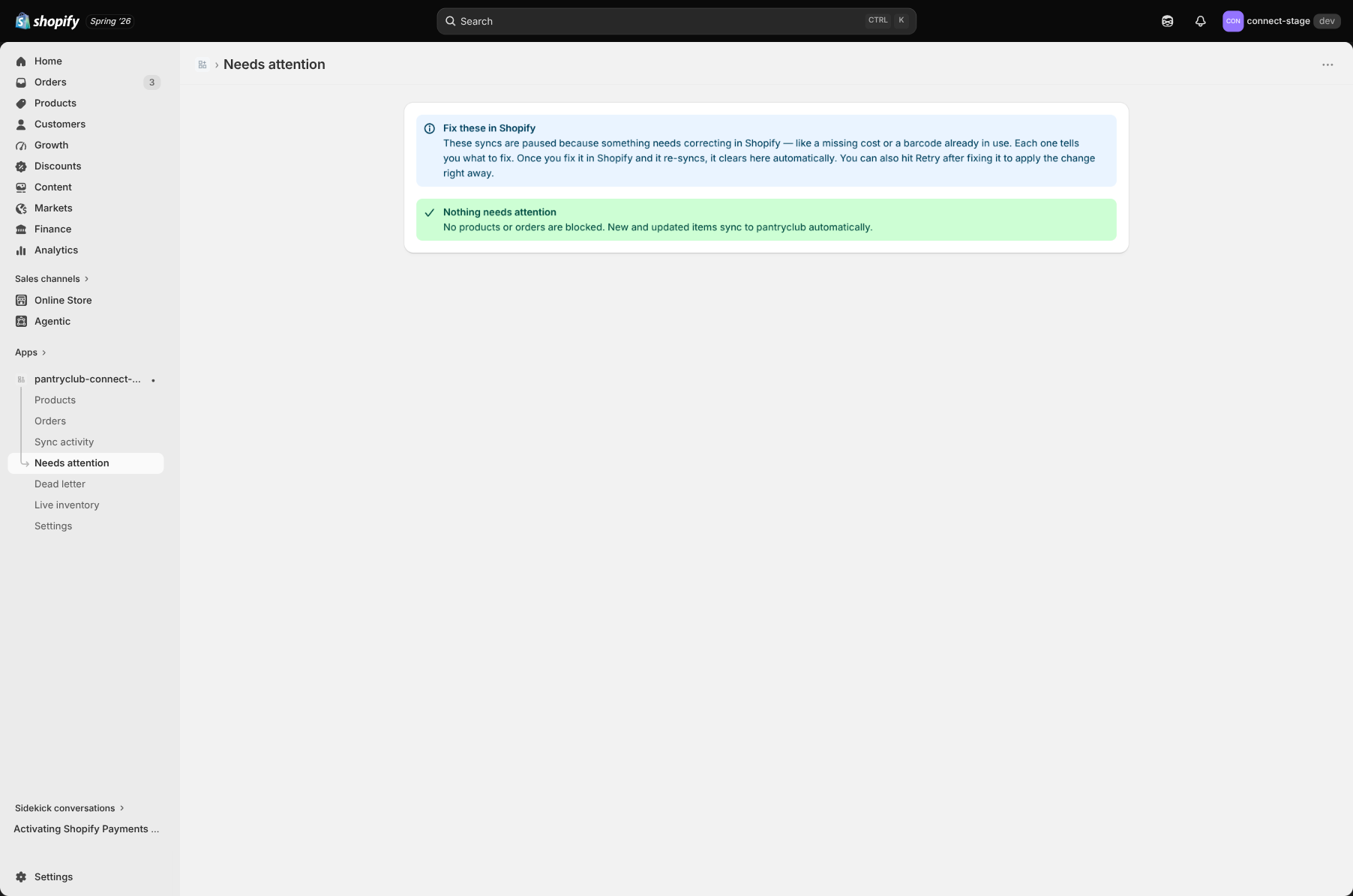
Each issue tells you exactly what to fix and links to the item. Once you make the correction in Shopify, it clears automatically. You can also press Retry on a single issue, or Retry all. A “Recently resolved” list shows what’s cleared.
See Troubleshooting for the full list of these fixes.
Dead letter
Section titled “Dead letter”The Dead letter page lists syncs that used up all their automatic retries. This is usually a temporary glitch — PantryClub or Shopify being briefly unavailable — rather than something you did wrong.
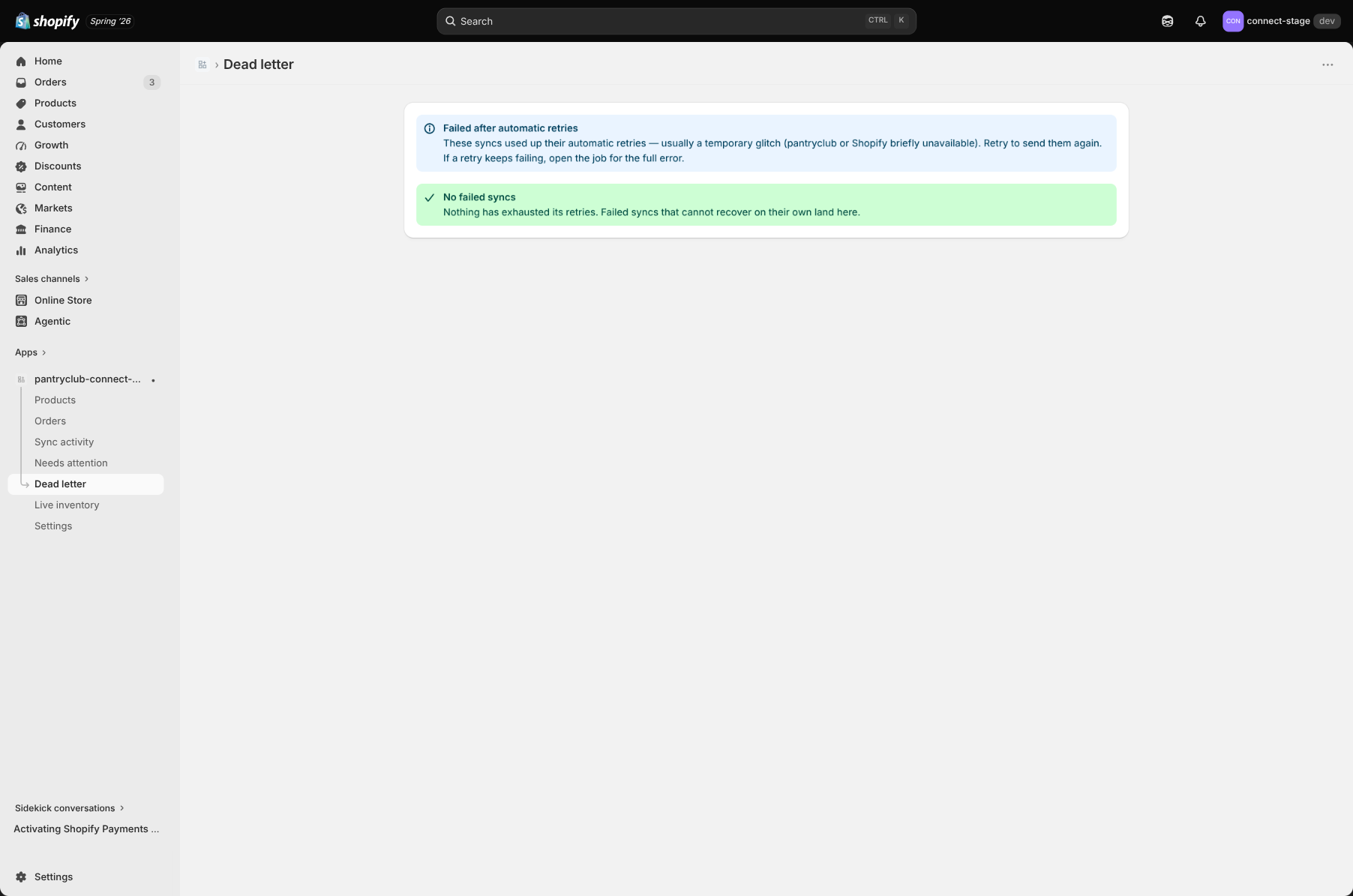
The app retries a failed job several times on its own (after 30 seconds, then 2 minutes, 10 minutes, 1 hour, and 6 hours) before it lands here. When it does, just press Retry or Retry all — most dead-letter items go through the moment the temporary problem clears. As with Needs attention, there’s a “Recently resolved” list.