Getting started
Getting started takes two steps: installing the app, then registering your store so the PantryClub team can set you up. This page walks through both.
Step 1 — Install the app
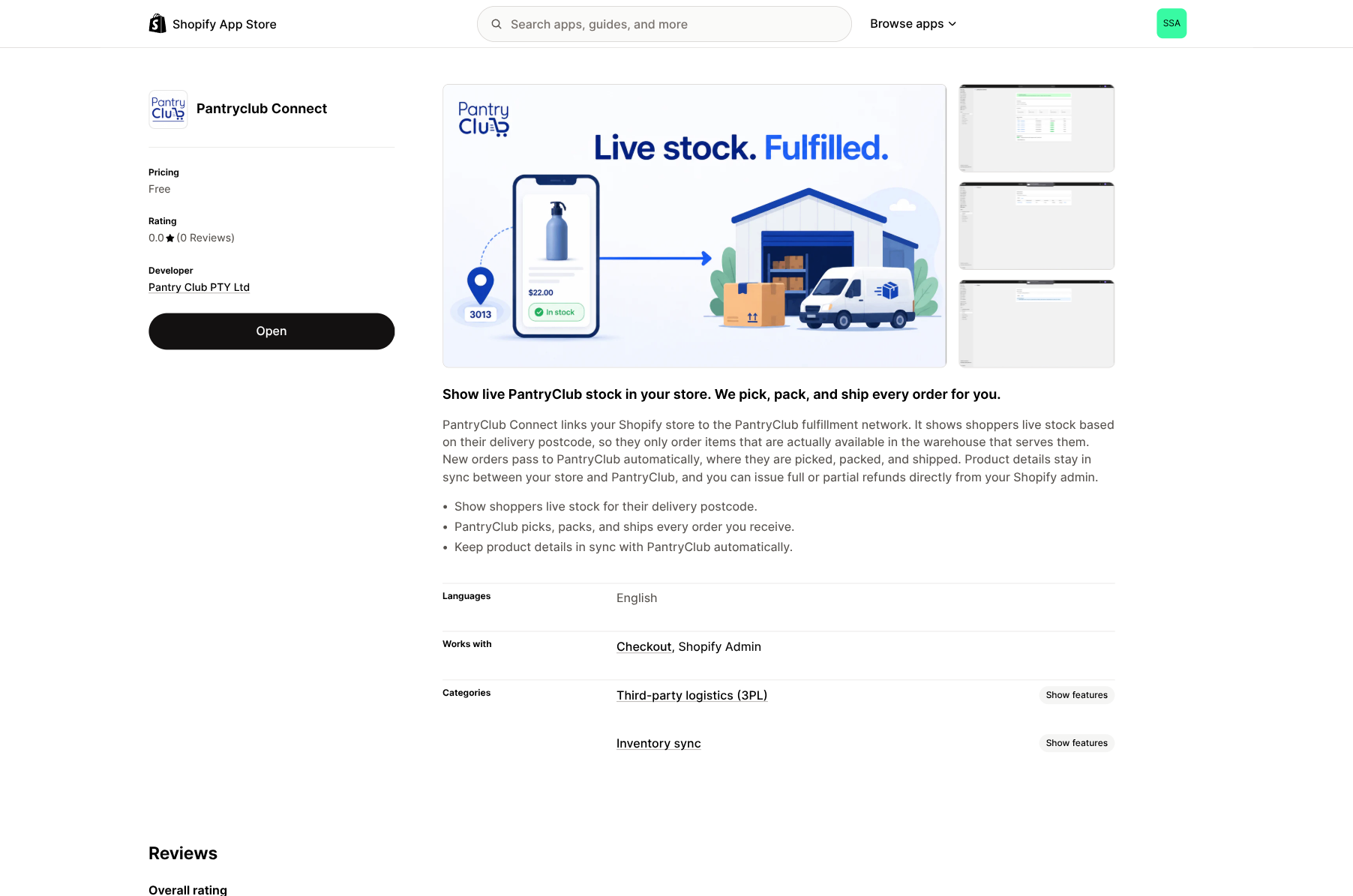
Section titled “Step 1 — Install the app”PantryClub Connect is a Shopify App Store app. You install it the same way as any other Shopify app.
When you install, Shopify asks you to approve a set of permissions. These let the app read your products and orders and keep prices, stock, and delivery status in step. Click to approve them.
Step 2 — Register your store
Section titled “Step 2 — Register your store”The first time you open the app, you’ll be asked to register your store. This tells the PantryClub team who you are and how you want your orders handled. Click Register your site to open the form.
Screenshot placeholder: the registration welcome screen.
The registration form
Section titled “The registration form”Fill in the following:
- Your name — the main contact person for your store.
- Site name — your store’s trading name.
- Stock holding days — how many days of stock you want held for you (a whole number, at least 1).
- Supplier emails — the email address (or addresses) of your supplier. You need at least one.
- How to send purchase orders — choose Email or WhatsApp. If you choose WhatsApp, add at least one WhatsApp number.
- Enable automated purchase order sending — tick this if you’d like purchase orders sent to your supplier automatically on the schedule you set below.
- Order schedule — add one or more slots that say “We send the purchase order on [day] at [time]”, and optionally “the supplier delivers on [day]”. You need at least one slot.
Screenshot placeholder: the registration form.
When you’re happy, submit the form.
Step 3 — Approval and setup
Section titled “Step 3 — Approval and setup”After you submit, your registration goes to the PantryClub team for review. You’ll move through a few short screens while this happens:
- Registration submitted / Under review — “Your registration is with the PantryClub team for review.” Reviews are usually done within 24 hours. There’s a Refresh status button you can press to check for an update.
- Almost there — Your details have been received and the PantryClub team is finishing your setup. They may reach out to you.
- Active — Once setup is complete, the app connects automatically. The next time you open it (or press Refresh status), it detects that your store is linked and takes you into the main dashboard.
Screenshot placeholder: the “under review” status screen.
Once your store is active, head to the Home dashboard to see everything at a glance, and to Live inventory setup to switch on delivery-aware stock on your storefront.