Delivery rates
Delivery rates let PantryClub work out the delivery fee live at your Shopify checkout. When it’s on, shoppers see a PantryClub Delivery option at checkout, priced for their exact delivery address and the items in their cart — so the shipping they pay lines up with what it actually costs PantryClub to deliver to them.
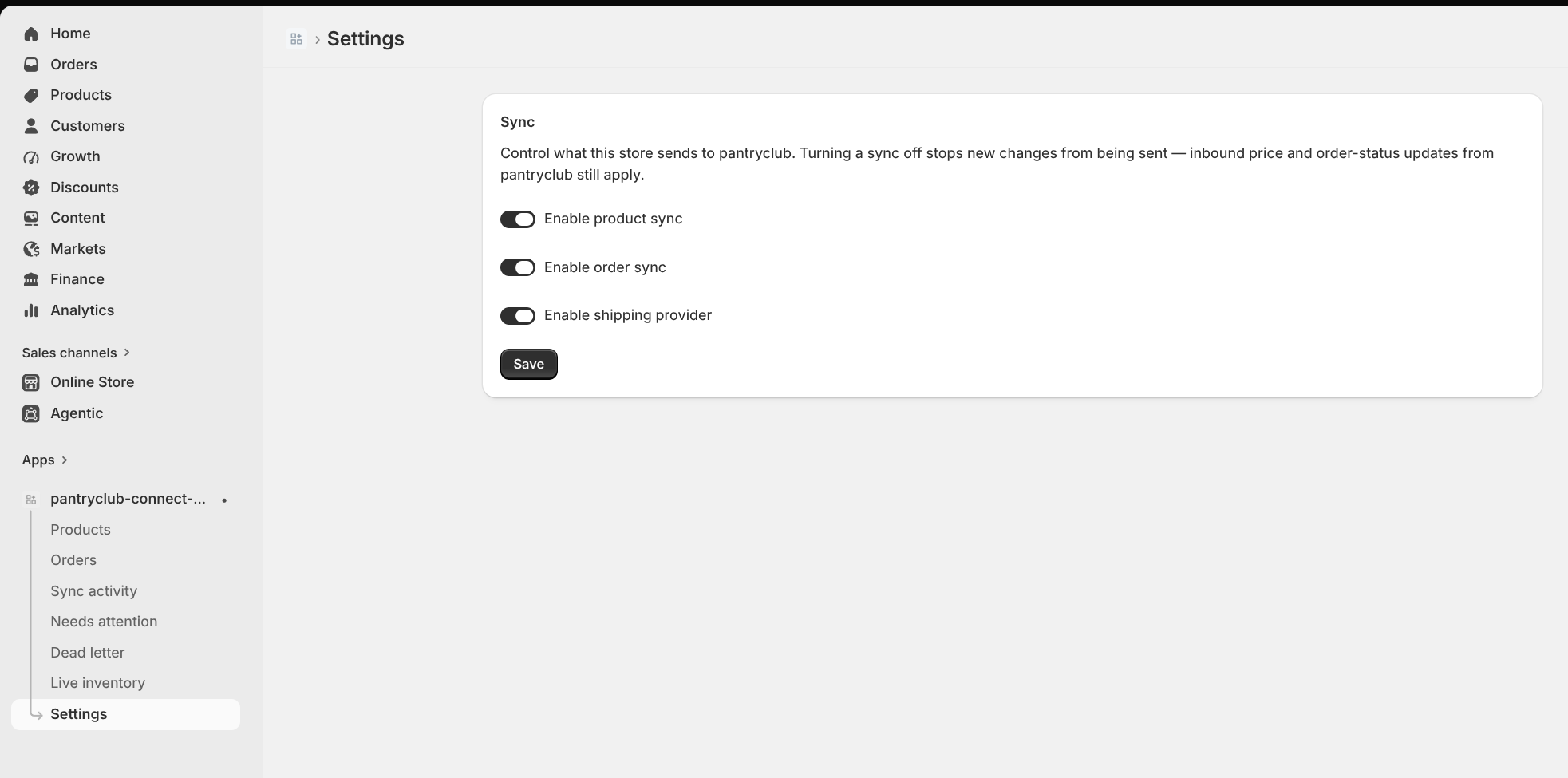
You turn it on with a single switch on the Settings page.
What your shoppers see
Section titled “What your shoppers see”At the shipping step of checkout, alongside any other shipping options you offer, the shopper sees a PantryClub Delivery option (shown as “Delivered by PantryClub”) with a fee calculated live for where they’re delivering to.
Screenshot placeholder: the checkout shipping step showing the PantryClub Delivery rate.
How the fee is worked out
Section titled “How the fee is worked out”When a shopper reaches the shipping step, PantryClub Connect:
- takes the delivery address they’ve entered,
- works out which warehouse serves that address and how far the delivery is,
- looks at the size and quantity of the PantryClub items in their cart,
- asks PantryClub for the exact delivery fee, and
- hands it back to Shopify as the PantryClub Delivery rate.
The result is the same fee PantryClub would charge for that delivery — nothing to maintain by hand, and it stays right as your cart and delivery areas change.
Turning it on
Section titled “Turning it on”Go to Settings, switch on Enable shipping provider, and click Save.
When you save, the app registers PantryClub as a delivery-rate provider in your Shopify store. From then on, Shopify asks it for a live rate every time a shopper checks out.
Good to know
Section titled “Good to know”- South Africa only. Delivery fees are calculated in Rand (ZAR). A checkout in any other currency won’t be shown the PantryClub rate.
- Only PantryClub products count. The fee covers the items in the cart that are fulfilled by PantryClub. If a cart has none of your PantryClub-linked products, no PantryClub Delivery rate is offered.
- A full delivery address is needed. The fee depends on the address, including the postcode — Shopify’s checkout always collects this before the shipping step.
- Always keep a backup shipping rate. If PantryClub can’t be reached for any reason, the app quietly steps aside and Shopify falls back to your own shipping rates, so checkout is never blocked. Because of that, keep at least one of your normal Shopify shipping rates set up — it’s the safety net for the rare moment PantryClub can’t answer in time.
Turning it off
Section titled “Turning it off”Switch Enable shipping provider off and click Save. The app removes PantryClub as a delivery-rate provider, and shoppers go back to seeing only your own shipping rates at checkout.
If a shopper doesn’t see the PantryClub rate
Section titled “If a shopper doesn’t see the PantryClub rate”Most often it’s one of the reasons above:
- the switch is off, or wasn’t saved;
- their cart has no PantryClub products in it;
- the checkout is in a currency other than ZAR;
- your Shopify plan doesn’t support carrier-calculated rates (you’ll have seen a message when saving); or
- PantryClub couldn’t be reached in time and Shopify fell back to your backup rates — which is exactly what’s meant to happen.
If none of these fit, see Troubleshooting & FAQ or get in touch with PantryClub.
How this relates to live inventory
Section titled “How this relates to live inventory”Live inventory controls what a shopper can buy (only what’s in stock at the warehouse serving their address). Delivery rates control what delivery costs for that same address. They work well together but are independent — you can turn either on without the other.