Home dashboard
The Home page is the first thing you see when you open the app. It’s your at-a-glance health check — is everything connected, is anything stuck, and what’s been happening recently.
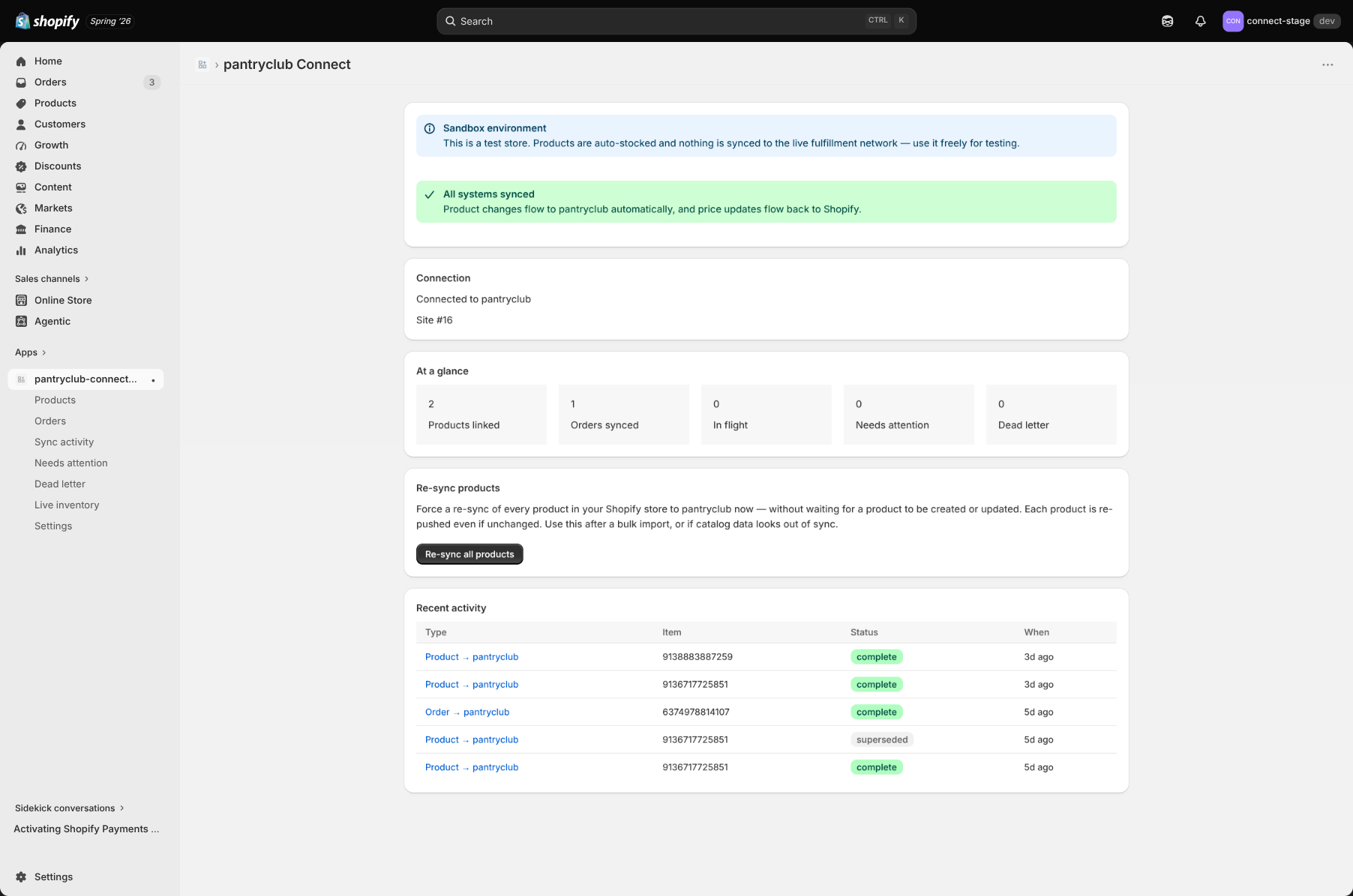
Health banner
Section titled “Health banner”At the top you’ll see one of two messages:
- “All systems synced” (green) — everything is flowing normally, nothing needs your attention.
- “N issues need attention” (warning) — something is stuck. The banner links straight to Needs attention or Dead letter so you can fix it.
Connection card
Section titled “Connection card”This confirms you’re connected to PantryClub, shows your plan, your PantryClub site number, and how long ago the connection was made. If you can see this card, your store is linked and working.
At a glance
Section titled “At a glance”A row of stat tiles gives you the headline numbers. Each tile is clickable and takes you to the matching page:
- Products linked — how many of your products are connected to PantryClub.
- Orders synced — how many orders have been sent for fulfilment.
- In flight — items currently being synced.
- Needs attention — items you can fix yourself (see Sync activity & issues).
- Dead letter — items that ran out of automatic retries and may need a manual retry.
Re-sync all products
Section titled “Re-sync all products”There’s a Re-sync all products button that force-sends every product to PantryClub again. Use it after a large product import, or if your catalogue looks out of step. It’s disabled if your store isn’t linked yet or if product sync is switched off, and it won’t let you start a second run while one is already going.
Recent activity
Section titled “Recent activity”A short table shows the last few sync jobs — what type they were, which item they affected, whether they succeeded, and when they happened. It’s a quick way to confirm things are moving.
Banners you might see
Section titled “Banners you might see”- Sync turned off — If you’ve switched product or order sync off in Settings, a reminder appears here so you don’t forget.
- Test store — If your store is a test/sandbox store, a banner reminds you that products are auto-stocked and nothing is sent to the live delivery network.