Products & syncing
The Products page shows your whole Shopify catalogue and how each product is doing in PantryClub. This is where you check that products are linked, see live stock per warehouse, and re-sync anything that looks off.
How product syncing works
Section titled “How product syncing works”You don’t have to sync products by hand — it happens automatically:
- From Shopify to PantryClub: When you add or change a product in Shopify, it’s sent to PantryClub automatically.
- From PantryClub to Shopify: PantryClub works out the correct selling price (and compare-at price and cost) and sends it back into Shopify for you.
The Products page is there so you can check on this and give something a nudge if needed.
The products list
Section titled “The products list”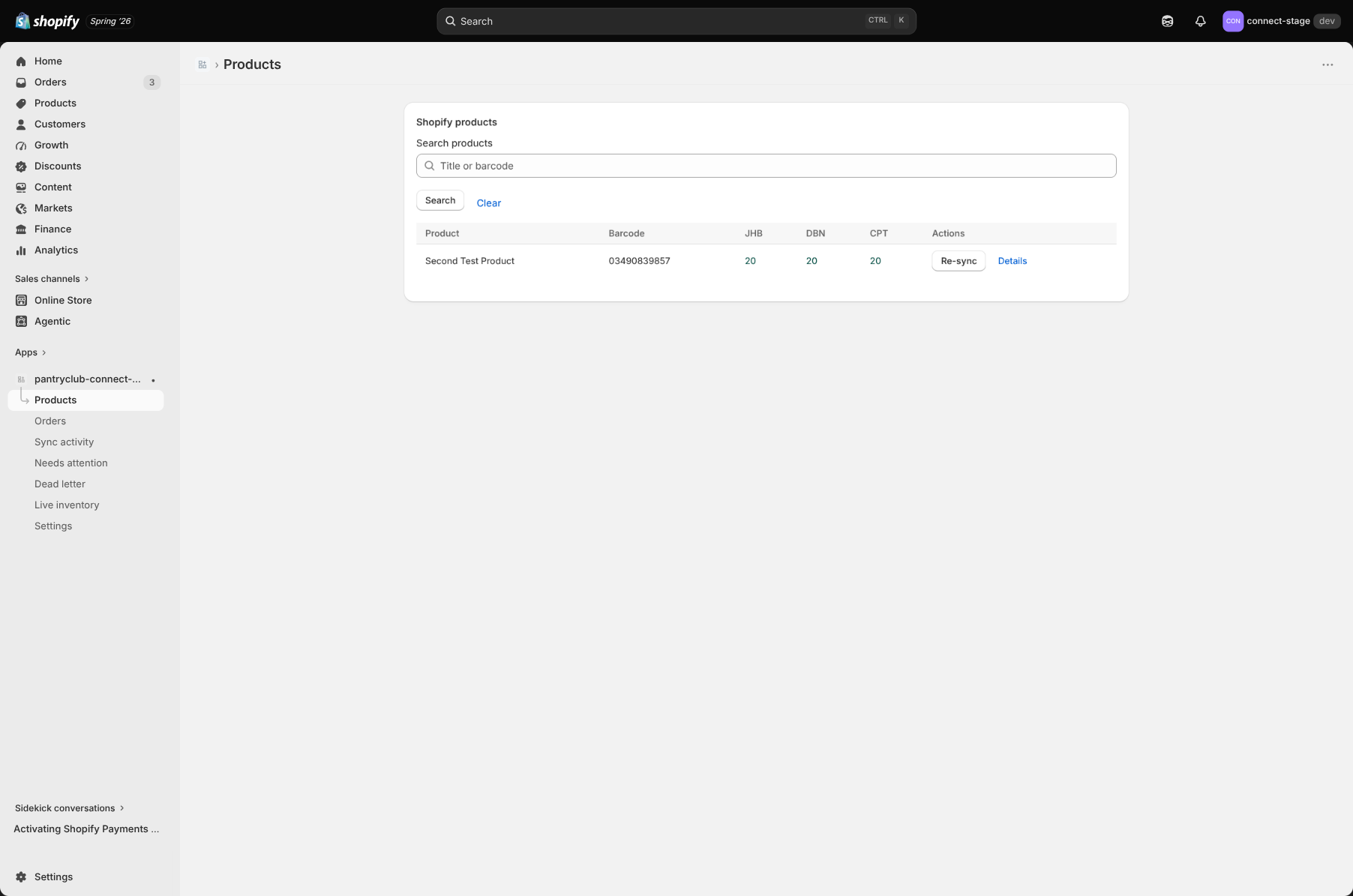
The list is paginated (25 products per page) and you can search by title or barcode. Each row shows:
- Product — the name, with a small badge if it’s Not synced yet or Needs attention.
- Barcode.
- Live stock per warehouse — three columns for JHB, DBN, and CPT, shown in green (in stock) or red (out of stock).
- Actions — see below.
Actions on each product
Section titled “Actions on each product”- Force sync — for a product that isn’t linked to PantryClub yet, this sends it across.
- Re-sync — for a product that’s already linked, this re-sends the latest details.
- Details — opens the product detail page.
If the whole list can’t load, you’ll see a warning banner. This usually means a permission changed and the app needs to be reinstalled (see Getting started).
Product detail
Section titled “Product detail”Click Details on any product to open its detail page, which shows Shopify and PantryClub side by side.
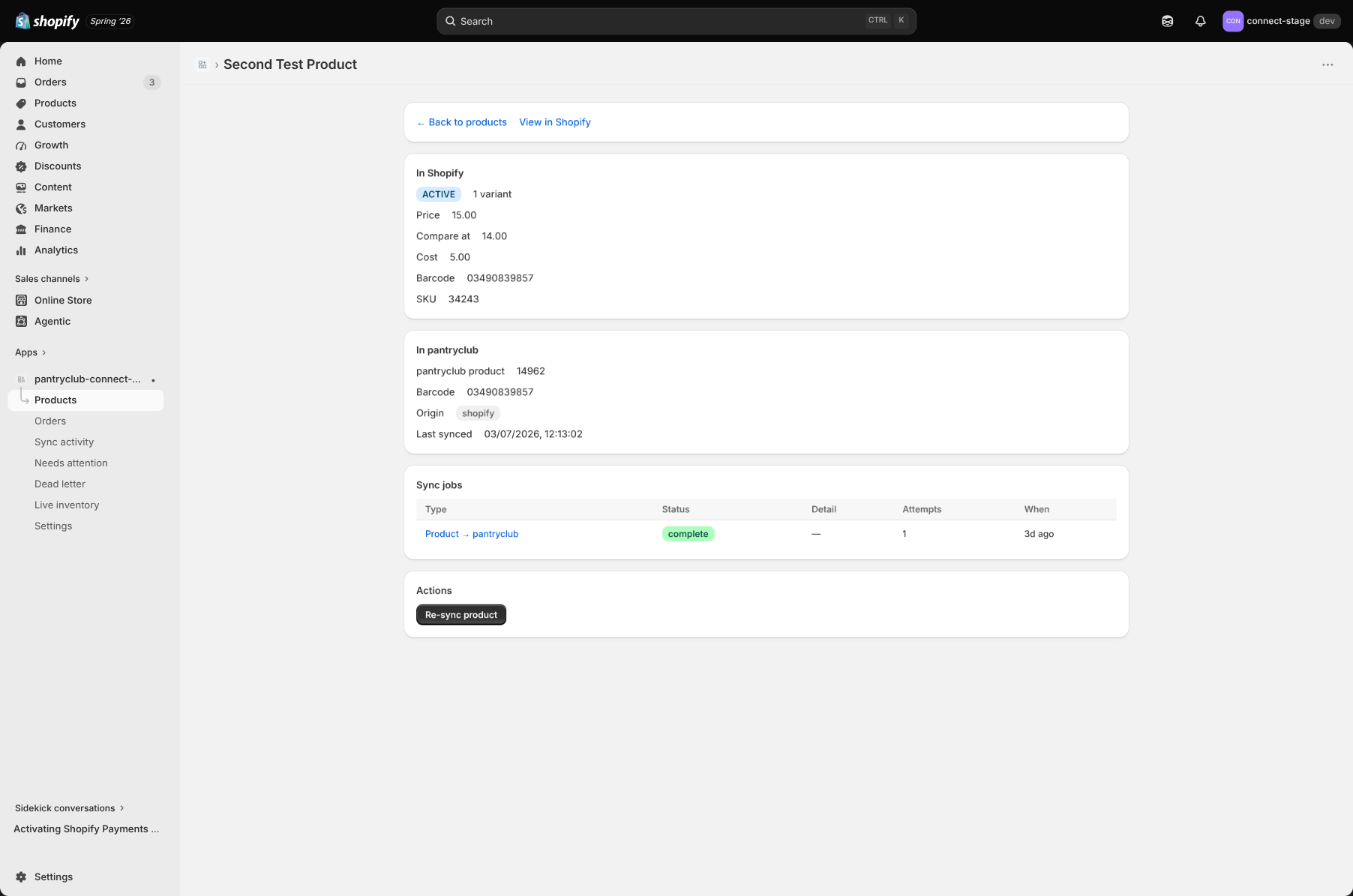
- In Shopify — status, number of variants, price, compare-at price, cost, barcode, and SKU.
- In PantryClub — the linked PantryClub product, its barcode, where it came from, and when it last synced.
You’ll also find:
- A warning if the product has more than one variant. PantryClub syncs a single default variant, so a product with multiple variants is blocked until you reduce it to one.
- An issue banner explaining the reason if the last sync failed or was blocked, with what to fix.
- A sync jobs history table showing each attempt to sync this product.
Actions
Section titled “Actions”- Re-sync product — send the latest details to PantryClub again.
- Retry failed job — try a failed sync again.
- View in Shopify — jump to the product in your Shopify admin.
When a product is blocked
Section titled “When a product is blocked”If a product needs something corrected before it can sync (for example a missing cost, a selling price that doesn’t cover cost, or a barcode already used by another product), it shows up under Needs attention with a plain-English hint on how to fix it. Fix the issue in Shopify and it re-syncs automatically. See Troubleshooting for the full list of fixes.